

Standard cello tuning
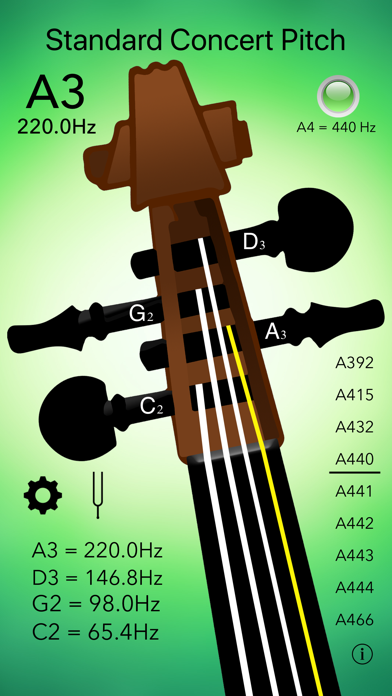
Lowest to highest string
1C2
2G2
3D3
4A3
Begin with a stable reference note, then check the remaining open strings.
A practical cello tuner guide for iPhone and iPad. Learn the reference notes, follow the tuning process and explore real Daikyouju apps.
A cello is normally tuned C–G–D–A from low to high. Because the instrument has a wide pitch range and resonant body, careful open-string checks are part of daily warm-ups.
Lowest to highest string
Begin with a stable reference note, then check the remaining open strings.
Daikyouju’s Basic and Professional cello apps are designed to provide direct visual pitch guidance. Compare the tuning and frequency display features described in each current listing.
Practice note: Check the A string first if you use it as a reference, then move through the other strings while keeping changes gradual.
Follow these steps using the app and your instrument. They are general guidance, not a claim that every interface has identical buttons.
Confirm the requested concert pitch and your instrument’s normal open-string tuning before you begin.
Launch your cello tuner on iPhone or iPad. If prompted, allow microphone access and select the relevant available preset.
Use a steady, gentle bow stroke or carefully pluck the open string, keeping other strings quiet.
Compare the detected note with your target. Make gradual peg or machine-head adjustments; avoid overtightening and stop if resistance feels abnormal.
Check the A string first if you use it as a reference, then move through the other strings while keeping changes gradual. Play a familiar passage or chord afterward to confirm the result by ear.
Uncropped, original App Store promotional screenshots delivered from Apple's CDN. Each image opens in full size.
 Cello Tuner BasiciPhone · View full image ↗
 Cello Tuner BasiciPhone · View full image ↗
 Cello Tuner BasiciPhone · View full image ↗
 Cello Tuner BasiciPhone · View full image ↗
 Cello Tuner BasiciPad · View full image ↗
 Cello Tuner BasiciPad · View full image ↗
 Cello Tuner BasiciPad · View full image ↗
 Cello Tuner BasiciPad · View full image ↗
Swipe or scroll sideways to explore
Compare the editions using features from each app's published catalog. App Store listings remain the source of truth for current pricing and compatibility.

Straightforward tuning for cello practice.

Refined pitch guidance for cellists.
A few common situations and practical ways to address them.
Wait for a steady pitch and avoid bow contact with neighboring strings.
Do not force them; ask an instrument technician for help.
Daikyouju Labs publishes dedicated music apps for iPhone and iPad. Compatibility, supported iOS/iPadOS versions and feature availability differ by app and may change; verify your device against the live App Store listing.
Compare the actual presets and features of the versions listed below. A Pro edition may offer additional tuning options or tools, but always confirm its current App Store description and price before downloading.
Start with the note sequence required by your instrument, arrangement or teacher. Check the A string first if you use it as a reference, then move through the other strings while keeping changes gradual.
Keep learning and explore the tuners made for the music you play.
Browse all instrument guides →